A Google Docs cover letter template saves setup time, but it does not decide what belongs in your application. Start from an appropriate document or template, replace every example line with role-specific facts, review the final layout and download the file type requested by the employer. Google Docs can create documents from templates and download them in several formats; none of those options guarantees that an application system will interpret every visual element correctly.
Start With the Vacancy and Your Evidence
Before drafting, read the exact posting and write down what the reader needs to know: the role, one real requirement, and a specific example you can explain. MIT career guidance recommends researching the employer and matching the role to demonstrated experience rather than relying on generic praise. The following examples are explicitly hypothetical; adjust each one to your documented circumstances and never treat them as a real employer or applicant record.
Start With the Actual Employer File Instructions
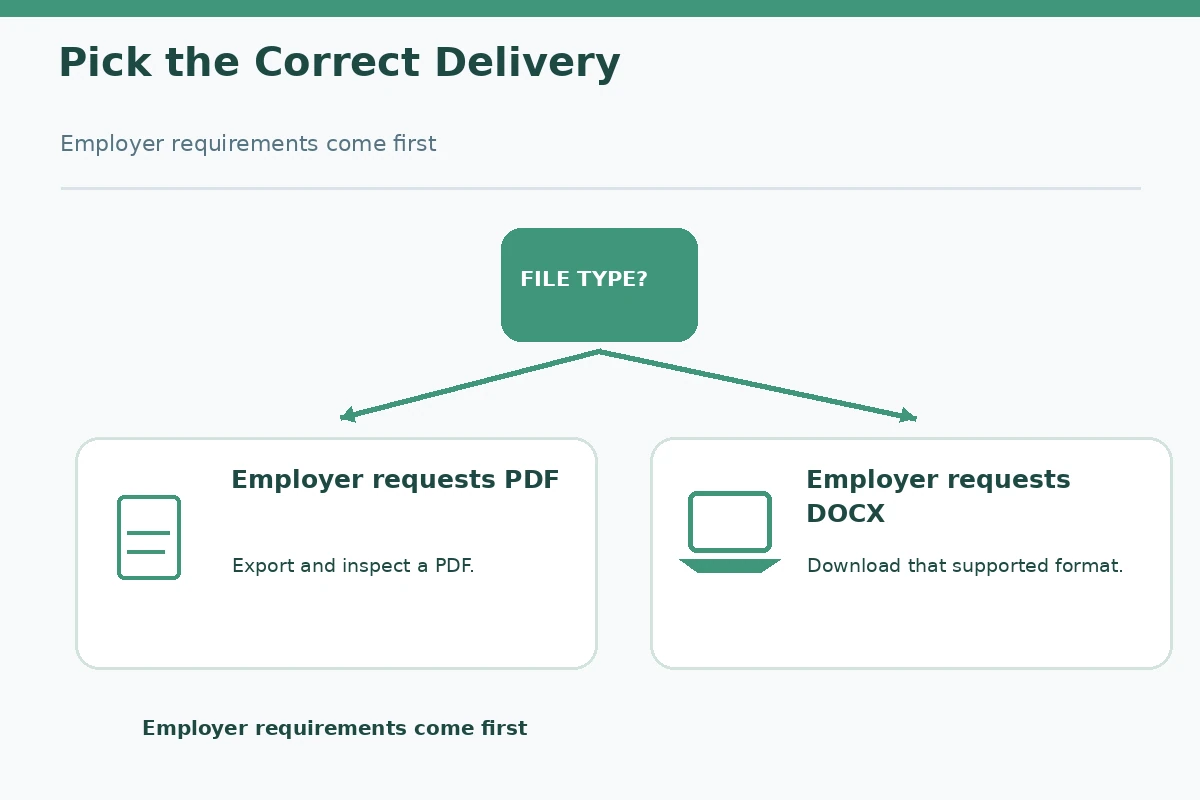
Before selecting a template, read the application page. Some employers want a PDF, others request DOCX or text typed directly into a form, and some provide a combined upload slot. The posting is the authoritative source for that application. A design that looks attractive on screen is not a reason to ignore an accepted file-type requirement. If instructions are unclear, choose a straightforward layout that is easy to review rather than adding unsupported file tricks.
Write down the target role, employer, required attachment format, file-name expectation and any explicit word or page limits. If there is no instruction on appearance, a simple header, readable body text and conventional paragraph sequence are practical choices. Do not claim that one Google Docs template is “ATS-proof” or that every employer uses the same document parser. The goal is a human-readable file with accurate content.
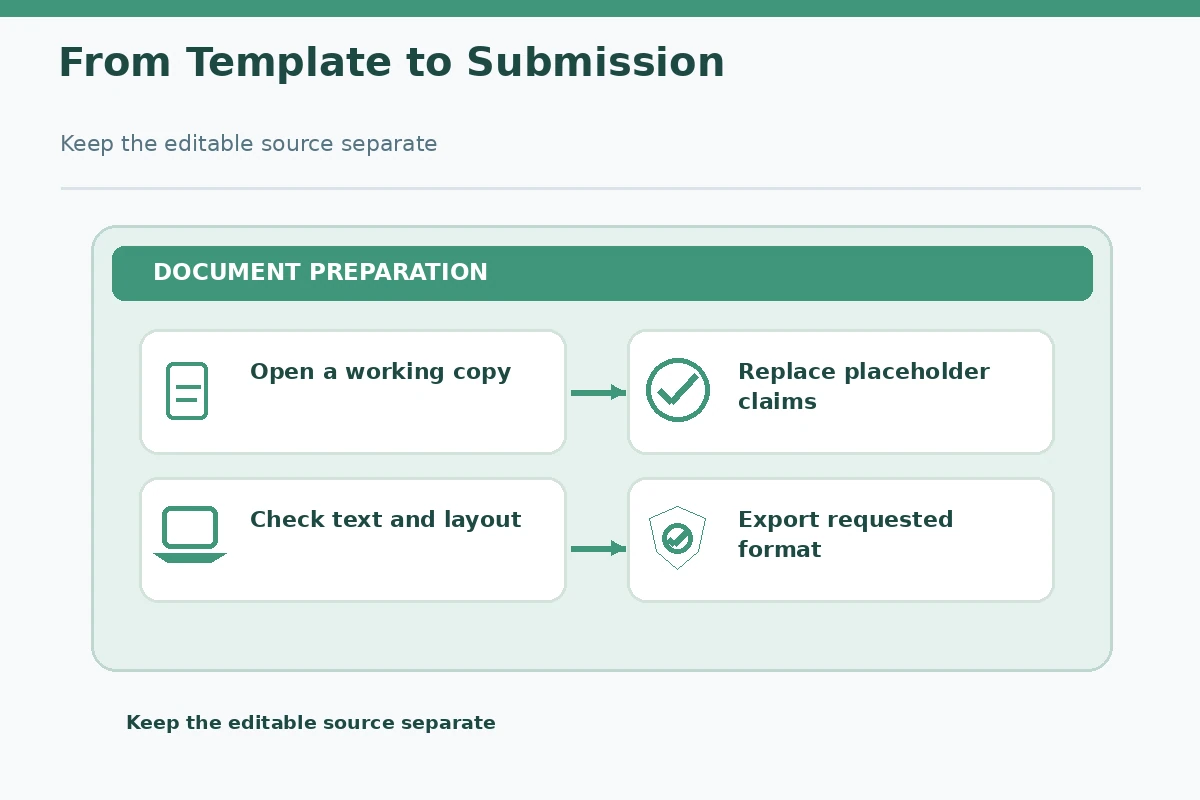
Create a Copy Before Editing the Template
Google’s documentation describes opening its Template Gallery and creating a copy of a chosen template. Depending on account and product options, available templates can differ. You can also begin with a blank Google Doc and use clear paragraph styles, which avoids fitting the letter into a decorative resume layout. If a gallery template does not suit your purpose, do not force your letter into it.
Name the working document so you can recognize it later, such as “Cover letter working copy — operations assistant.” This is an editing convention, not a required naming rule. Save a copy before making major changes when you want to compare versions. Google Docs usually saves online changes automatically, but that does not mean a separate downloaded PDF stays current after you edit the original document.
Replace Every Sample Line With Role-Specific Evidence
Delete placeholder greetings, generic claims and example accomplishments. Add the exact job title and a reason connected to the vacancy. For the body, choose one or two actual experiences that show the required skill. An editable template can contain an attractive phrase like “increased efficiency by 40%”; remove that sentence unless it is your verified result, measured in a way you can explain.
A hypothetical applicant might write about checking a spreadsheet for missing entries and notifying the supervising coordinator. That example is helpful only if the applicant really did those tasks. A letter is not made authentic simply by changing the employer’s name. UC Davis cover-letter guidance distinguishes introduction, evidence-based middle paragraphs and a courteous ending, with each part tailored to the specific position.
Make the Document Visually Readable
Use one clear text column, readable body type, sensible margins, consistent spacing and a recognizable sequence: contact information, greeting, opening, evidence, closing and name. Avoid images of text, overlapping shapes, tiny labels and decorative sidebars that crowd the explanation. A two-column design can look tidy yet make copying or reviewing sections harder. The correct layout depends on the employer’s instructions and how the finished file is used.
If the template includes a table for alignment, test the reading order after export. Check for lines that suddenly break across pages or a signature that appears alone on a second page. No particular font or size can guarantee applicant-tracking compatibility, so test the content directly: select and copy the document text into a plain editor and see whether its order still makes sense.
Export the File the Employer Requests
Google’s download help explains how to open File, choose Download, and select a supported file type. Do this only after the content is current. A PDF is useful for preserving a stable visual layout where permitted, while an editable document can be appropriate when specifically requested. Neither should be presented as universally best, because an application may set different rules.
Give the downloaded file a clear, neutral name, for example “CoverLetter-YourName-Role.pdf,” replacing the placeholders. Avoid including sensitive account numbers or irrelevant production notes. If the portal requires text pasted into a field, do not assume uploading a PDF fulfills that separate requirement. Preserve the editable source for future tailored applications but create a new final export for each changed role or employer.
Run a Three-Part Export Audit
First, open the downloaded file and check that nothing is clipped, the title and employer are correct, and no placeholder remains. Second, copy and paste the text into a plain editor to inspect reading order, punctuation and unexpected missing lines. Third, view it at an ordinary zoom on a second screen or device if available. These practical checks do not prove how a proprietary hiring system will parse the file; they catch visible problems before you upload.
Pay particular attention to long links, addresses, page breaks and spaces around punctuation. Check that a portfolio link is appropriate for the role and points to a public, permitted page. If a document was revised after its PDF was downloaded, export it again. The local file does not automatically change just because the Google Docs source was updated.

Keep Sharing Permissions and Upload Rules Separate
Google Docs sharing permissions and an employer’s upload portal are two different processes. Sending a link to a private file may not give reviewers access. If a job posting requires an attachment, upload the actual file instead of assuming that a share link is equivalent. If it explicitly permits a link, confirm who can view the document and whether it exposes personal details beyond what you intend to share.
After upload, look for the portal’s receipt or the visible attachment name; do not assume a browser tab closing proves successful submission. Check the application status using the employer’s own system. The cover letter’s content, not the template brand, is what should help the employer understand your relevant evidence. Avoid claims that using Google Docs changes your hiring odds or secures an interview.
How We Research Cover Letter Guidance
We reviewed publicly accessible university career-center materials and, where relevant, official software instructions on 2026-10-27. We checked for distinct intent against available earlier JobAsk batches, including the general cover-letter and email-application articles. Our workflow does not reveal private WordPress drafts and cannot guarantee slug availability or an employer’s response. Scenarios are hypothetical, not documented candidate success stories; revise examples against your own history and the actual application instructions.
Source: support.google.com. Google documents the Template Gallery and the creation of a new file from a template.
Source: support.google.com. Google describes File > Download and choosing a desired file format.
Source: careercenter.ucdavis.edu. Career advice explains the function of a tailored cover letter and appropriate content sections.
Source: career.ucsd.edu. A clear job-specific cover-letter opening and evidence paragraphs support the reader’s task.
These career centers and software providers do not endorse JobAsk or promise application outcomes. No affiliate agreement is implied. Review our affiliate disclosure. Follow the employer’s own submission rules and verify any professional or licensing requirement separately.
Related Guides
- Cover Letter Format: Set Up the Header, Paragraphs, and PDF Correctly
- Email Cover Letter or Attachment? Choose the Right Submission Format
- Google Docs Resume Template: Edit, Export, and Check the Final File
- How to Write a Cover Letter From Scratch: Turn a Job Posting Into Proof
- Job Application Attachments: Upload the Right Files Safely
Yes. Start from a suitable template or blank document, then replace every sample claim with your own facts.
No. Follow the employer’s stated requirements; review the final downloaded format before uploading.
No. A template cannot guarantee how an employer’s specific application system processes a file.
Download the corrected file again; an older exported copy does not update automatically.
Only if the employer accepts links and has the necessary viewing permission; follow the specified submission route.