The choice between resume PDF vs DOCX is not a contest with a universal winner. Follow the employer’s instructions first. A PDF normally preserves page appearance, while a Word DOCX file can be edited and may be required by some applications. Different applicant systems accept different types, so the displayed upload instructions are more important than general internet claims about ATS compatibility.
Keep a clean editable master, then produce the format needed for the specific role. Both exports should contain the same truthful claims, current contact information, and relevant evidence. All sample filenames and applicants in this article are hypothetical; no download format can guarantee interview selection.
Start With the Exact Upload Instructions
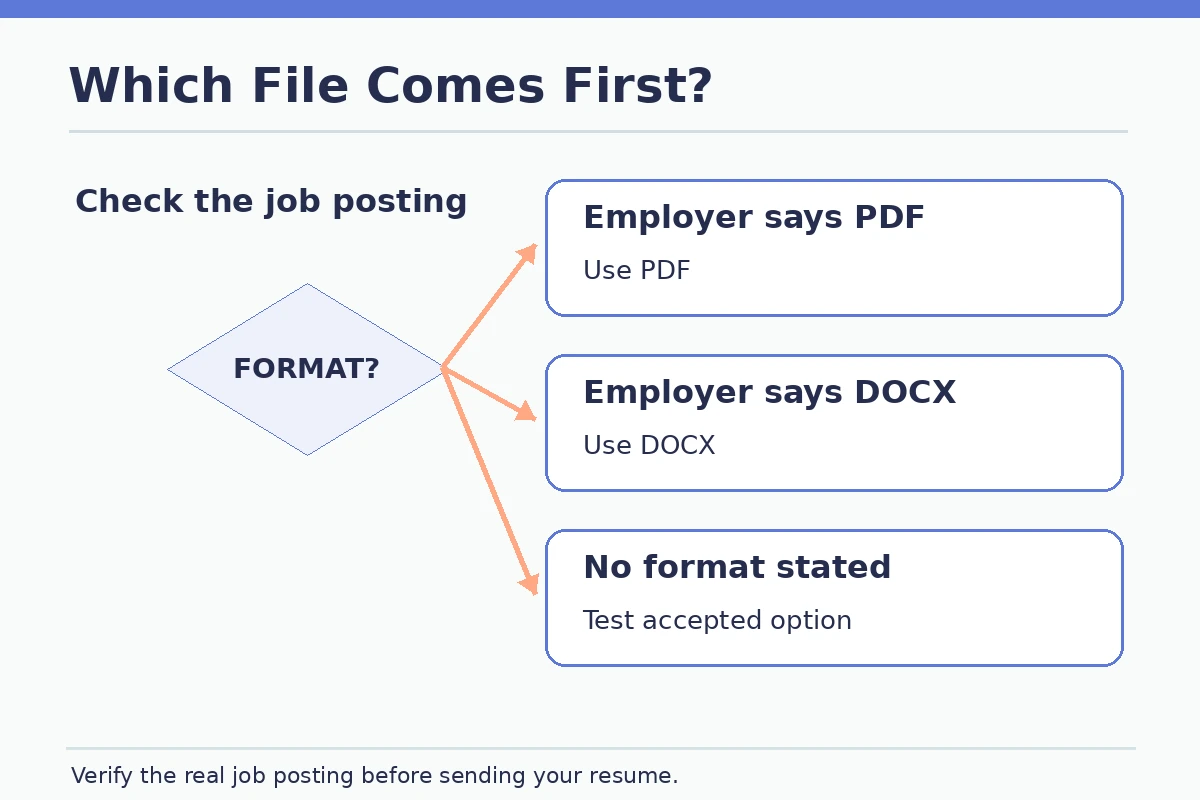
Read the job posting and the attachment control before exporting. If the listing names PDF, submit PDF. If it requires DOCX, use DOCX. When the system provides an accepted-file list, choose from that list rather than relying on the format you normally prefer. Some online applications ask for both a document and manually entered experience.
A portal may reject one extension, convert the attachment, or preview it differently. Pay attention to file size limits, allowed characters in filenames, and whether the employer wants a separate cover letter. Uploading a technically correct PDF does not excuse leaving required application fields blank.
Practical checkpoint: Decision question: does the hiring system explicitly name a required extension? That answer overrides any generic template recommendation.
Know What PDF Preserves and What It Does Not
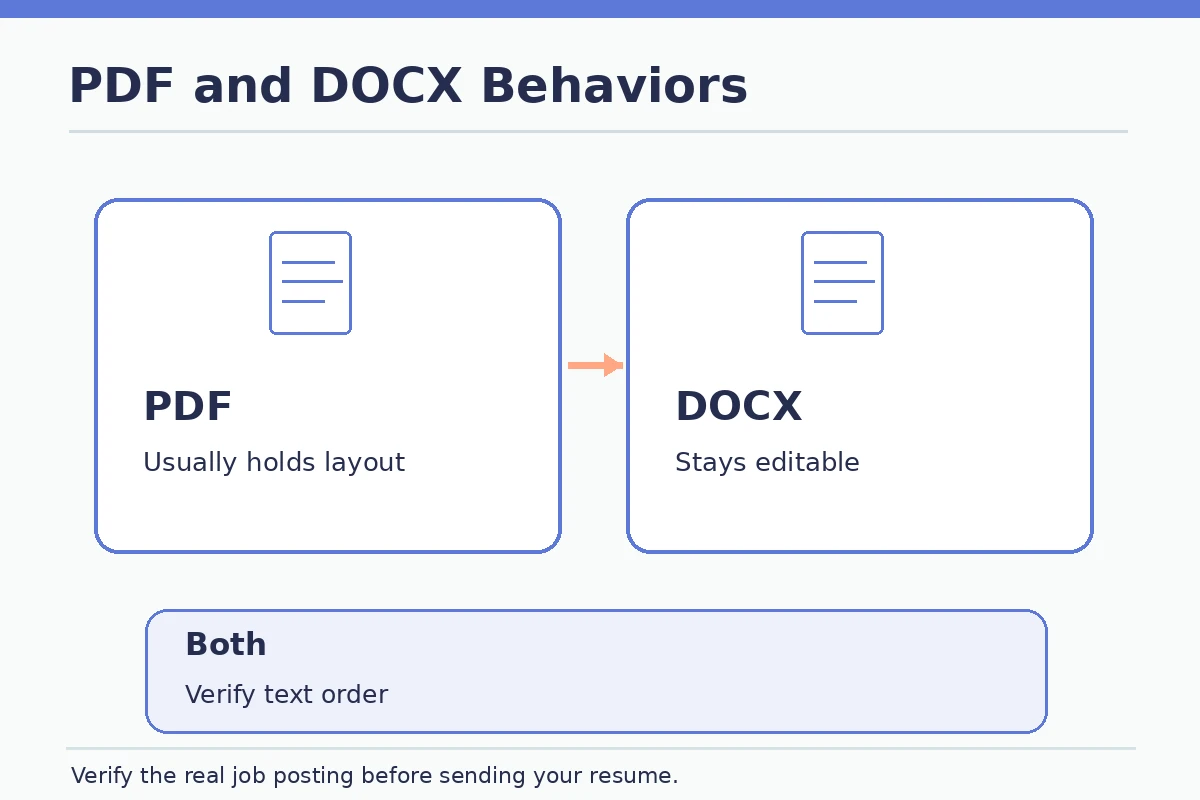
PDF is designed to present the page consistently across devices. Microsoft notes that PDF preserves formatting, making it useful for sharing finished resumes. It is therefore practical when the employer accepts it and you want to preserve spacing, fonts, and page breaks.
However, preserving the appearance does not automatically mean every PDF has readable embedded text. Image-only exports, scanned pages, and some complex designs can make copying text difficult. Open the PDF, select a line of experience, and paste it into a plain-text editor. If the extraction is garbled, rebuild the document using ordinary text rather than a screenshot.
Practical checkpoint: Test PDF text by selecting name, role, dates, and one bullet. The pasted sequence should remain understandable.
Understand the Editable Nature of DOCX
A DOCX file is useful for working drafts and for employers who request Word documents. It stores text and formatting in an editable format. The same document may render differently on another application or computer, particularly if it relies on uncommon fonts, tables, or custom text boxes.
Maintain your own master document and create a job-specific copy to attach. Open the copy after saving and confirm that tracked changes, comments, or obsolete sections are not included accidentally. Do not assume that a file named “final” is the current version. The actual saved content and modification choice matter more than the name.
Practical checkpoint: If DOCX is required, use ordinary text structure and check the file on a second viewer where possible.
Export Both From One Clean Source File
Make final content edits in the source document first. Save the editable version under a recognizable job-specific filename. Then use the application’s export or Save As PDF command and open the resulting PDF. The Microsoft Word guidance documents exporting or saving a file to PDF from Office.
Check header text, bullet alignment, page count, contact links, and any unexpected blank pages. A different page count after export may signal a substituted font or changed spacing. If you need to revise a bullet, return to the editable master and generate a fresh export so versions do not diverge.
Practical checkpoint: Practical habit: one editable master, one verified exported file, and one clearly named copy per vacancy.
Run a Reading-Order and Accessibility Check
Visual correctness and text correctness are separate. Try selecting the entire resume and copying it into a text-only field. Check whether names, headings, employers, and dates stay in the right order. This is especially important when using columns, sidebars, or graphic resume templates.
Test hyperlinks and accessibility where your editor supports them. If a file is flattened into an image, automated systems and assistive tools may struggle to interpret it. A simple text-based layout is easier to check and usually easier to repair. The CareerOneStop guide encourages simple formatting and appropriate file choices.
Practical checkpoint: Copy-paste check: if dates jump ahead of job titles, revisit the source layout. Do not claim that a successful paste guarantees ATS acceptance.
Name and Attach the Right Version
Use a neutral, identifiable filename such as Hypothetical-Candidate-Operations-Resume.pdf as an example, replacing it with your own name and actual role. Avoid multiple confusing variants like resume_final_final2. Filenames should not contain sensitive information that a receiver does not need.
Confirm that the portal actually retained your intended attachment; some systems keep an older file if a new upload fails. Look at the filename shown beside the upload field, inspect any preview, and finish any required questionnaires. A confirmation page is evidence of a submission step, not evidence of recruiter review or hiring.
Practical checkpoint: Before clicking Submit: read the posting again, verify extension and filename, then inspect the actual uploaded version.

Use a Two-Branch Exception Checklist
If a position explicitly requests DOCX, follow that request even if your personal default is PDF. If the employer asks for PDF, send a text-based PDF. If neither is specified, choose a supported file with a clear layout and confirm it previews correctly. For portals that parse the file into fields, check the resulting entries and correct errors.
Avoid saying that DOCX always defeats an ATS or that PDF always works everywhere. There are many systems and no universal guarantee. If the application returns an error, follow the employer’s documented help path rather than repeatedly submitting random file types or adding unsupported claims to the resume.
Practical checkpoint: Closing audit: required type, correct version, readable text, consistent dates, working links, and genuine confirmation of submission.
How We Research Resume Layout Guidance
We compare recommendations from CareerOneStop Penn Career Services Microsoft Support Microsoft Support. These sources describe formatting, exports, and resume structures; they do not establish that a particular template will guarantee an interview or a favorable screening result. Verify current portal instructions for every vacancy, and have a qualified reviewer inspect personal claims before publishing or sending an application.
This educational guide contains no claimed affiliate relationship. Read the JobAsk affiliate disclosure. The sample situations are hypothetical, and real employers may ask for different documents, sections, or formats.
More Resume and Cover Letter Guides
- Canva Resume Templates: Build a Readable, Text-First PDF Export
- How to Make a Resume in Microsoft Word: Template to Final PDF
- Resume Checklist Before You Apply: Accuracy, Relevance and File Checks
- Google Docs Resume Template: Edit, Export, and Check the Final File
- Customer Service Skills for a Resume: Show What Happened After the Request
No. Follow the employer’s stated file rules. PDF preserves appearance; DOCX can be requested for compatibility or editing.
No. Hypothetical examples illustrate structure. Replace them with tasks and evidence you can accurately explain.
No. File type, page limits, required fields, and naming directions in the actual vacancy take priority.
No. Keep readable headings, true dates, and a clear reading order. Decoration is optional and can reduce clarity.
Verify your name and contact details, required qualifications, job-specific content, correct attachment, and a readable exported file.