A Canva resume template can be a useful starting point for arranging your experience, but its visual preview is not proof that the exported file reads correctly. Decorative columns, text boxes and icons may make a page attractive yet harder to scan or extract. Start with a simple template and put accurate, text-based qualifications ahead of decoration.
Canva’s official download instructions explain how to choose a file type, and its accessibility guidance discusses PDF reading order. The practical goal is a resume that remains understandable when printed, viewed at reduced size and copied as text—not a promise of an ATS score.
Select a Template for Content Capacity
Choose a design whose main text is clearly readable and whose job history has enough room for actual roles and dates. A single-column template generally needs fewer compromises than a two-column design with decorative skill bars. If the template reserves half the page for a portrait or large initials, consider a different layout.
Match the design to your experience rather than trimming evidence to satisfy a preset. A student may need room for Education and Projects. An experienced worker may need a longer Work Experience section. The template should adapt to the facts, not determine which facts you pretend to have.
Replace All Sample Text With Real Details
Inspect every text object: name, contact line, summary, section headings, employers, titles, dates and skills. Replace placeholder achievements with actions you really performed. If the template includes a circular ‘90% leadership’ chart, remove it unless there is a credible, externally defined measure behind that number.
A hypothetical example: replace ‘Award-winning strategist with proven growth’ with ‘Supported weekly campaign reporting in a supervised internship.’ The second statement offers an identifiable role and task. Delete decorative star ratings for software skills; describe the program and the work you can demonstrate instead.
Reduce Icons and Decorative Columns
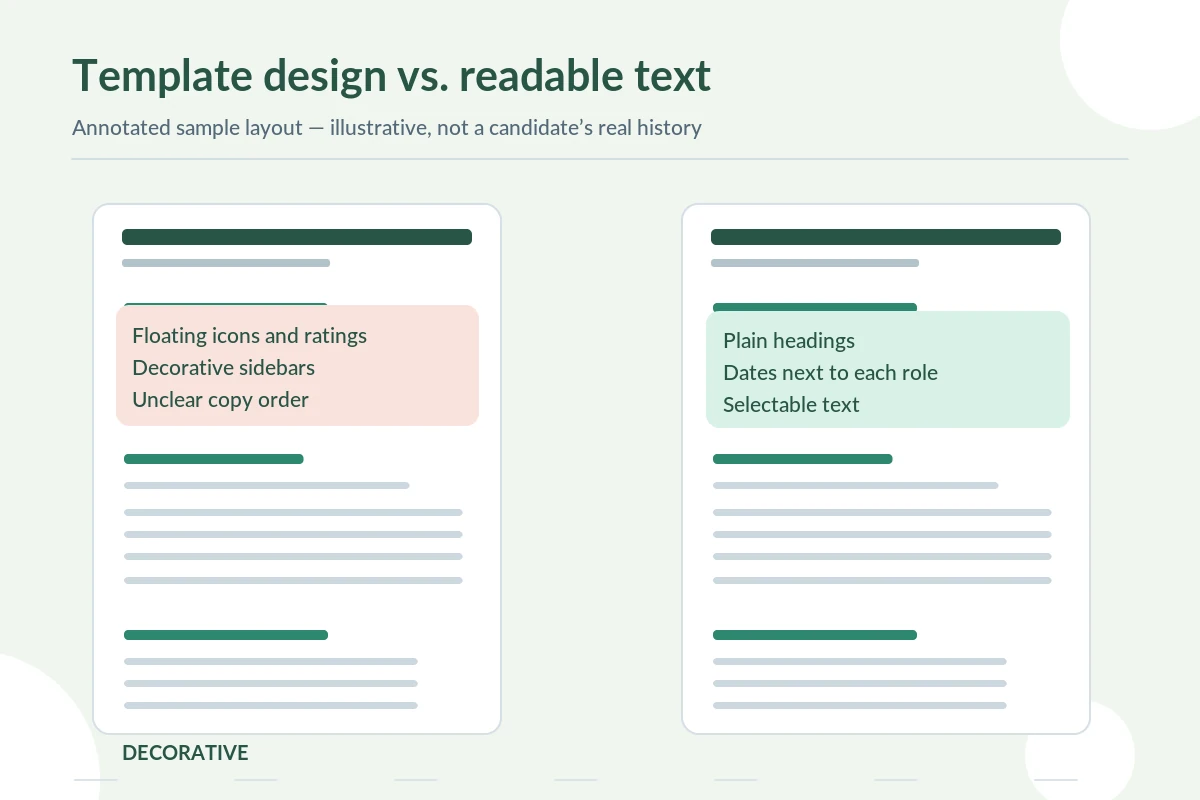
Icons beside email and phone may look harmless but can interrupt text extraction or distract from the contact detail. Keep important information as ordinary text. If a logo or graphic communicates no hiring-relevant fact, remove it. Do not use a photo unless the employer or industry context justifies one and you understand local expectations.
University of Pennsylvania Career Services cautions against graphics, text boxes and complex layouts that may not be interpreted consistently by automated systems. A simple Canva document may still work well; the point is to verify the outcome, not assume every Canva template fails or every plain page succeeds.
Set a Clear Resume Reading Order
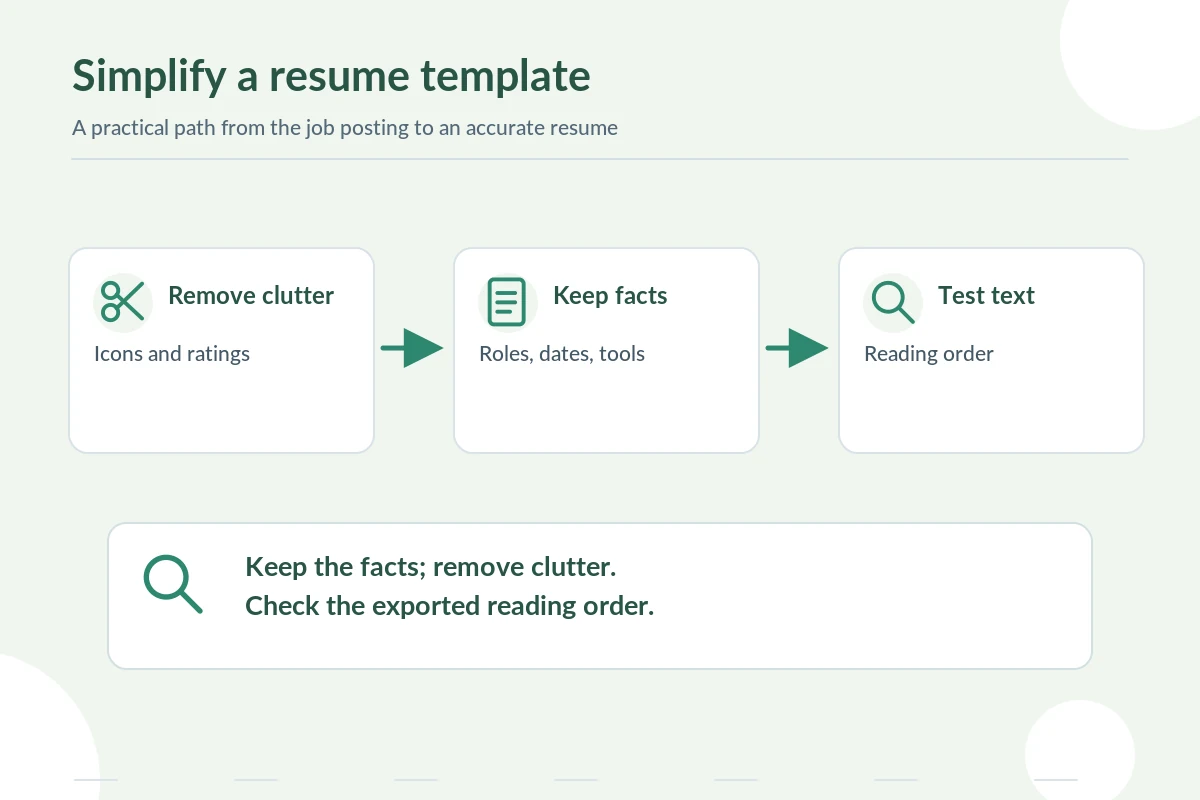
Read the design from top to bottom without following color blocks. Do the contact details appear first, followed by recognizable headings and dated experience? If the left sidebar contains skills while the main column contains jobs, a screen reader or text extractor may merge them in a confusing order.
Canva documents PDF accessibility tags and the reading order of elements. Its guidance says simple, linear layouts tend to work best. If the export reads a heading after its bullets, reorganize the source layout or choose a simpler template, then export again.
Export a Digital PDF and Check Options
In Canva, open Share, choose Download, then select a PDF file type. Canva distinguishes a digital-standard PDF from a print-oriented PDF; export options can change with the interface and account. For a normal online job application, prioritize a legible digital document and the employer’s accepted file type.
Review any accessibility or flattening options shown. Canva notes that flattening can remove accessibility tags; the official guidance recommends avoiding flattening when an accessible tagged PDF is needed. Do not assume the correct checkbox alone proves accessibility—inspect the exported text and reading order.
Run a Copy-and-Paste Text Audit
After downloading, open the PDF in a regular viewer. Drag-select a sentence that includes a job title and date, copy it and paste it into a plain-text note. Check whether all words appear in the intended order. Repeat with the contact line and skills section. If selection is impossible or text is garbled, revise the source template.
Canva’s PDF accessibility guidance describes the importance of reading order. A visual check and a text audit test different things, so both matter. A document that looks good but is difficult to read aloud or parse is not ready.
Inspect Cropping and Hidden Elements
Zoom into the top and bottom edges, as well as any colored shape behind text. Make sure no line is cut, that the final work entry is visible, and that font contrast remains readable on a phone-sized preview. Check that no sample email address or watermark has survived the edit.
Canva’s file-type guidance notes that certain image information can remain in PDF exports; do not include private background material that you expect cropping to erase. Prefer removing unwanted image content from the design itself rather than hiding it under shapes.
Keep a Simpler Backup for Strict Portals
If a job portal demands DOCX or strips PDF layout, do not force a Canva PDF through it. Recreate the text in a simple word-processing document and submit the required format. Keep the same dates, titles and descriptions. Avoid paid template elements if their licensing or export conditions prevent a clean output.
The choice is practical, not aesthetic: follow the posting, preserve facts, and test the file. A beautiful template is optional; verifiable evidence and contact information are not. Do not present a template download as a verified employer preference.

Review the Final File as a Recruiter Would
Open the exported resume outside Canva. Check the first ten seconds of reading: role, relevant qualifications, date order and contact information. Use a smaller preview to ensure the type is legible, then copy text to confirm the structure. Verify filenames and whether the file opens without account login or unusual fonts.
If you must make a change after export, make it in the source design and regenerate the file. Do not edit the downloaded PDF in a way that creates conflicting versions. Maintain one master set of facts and tailor only the emphasis that truly matches the vacancy.
How We Research Resume Format Advice
This guide draws on Canva file types, Canva export instructions, Canva PDF accessibility, Penn Career Services, CareerOneStop formatting. We checked these primary and professional resources on October 28, 2026 for the specific formatting practices, application cautions, or product instructions discussed above. Suggestions are not assurances of any employer or ATS outcome. Any sample applicant or achievement is hypothetical unless explicitly cited as a source example; replace samples with truthful details. Always follow the job posting if it specifies a different document style or file type. For commercial relationships and disclosure policy, see JobAsk affiliate disclosure. No affiliate partnership is implied.
More Resume and Cover Letter Guides
- Resume PDF vs DOCX: Choose the File Type Employers Request
- Google Docs Resume Template: Edit, Export, and Check the Final File
- ATS-Friendly Resume Format: Keep Headings and Text Easy to Parse
- Microsoft Word Resume Template: Format, Edit, and Export Safely
- How to Write a Resume From Scratch: Build an Evidence-First Draft
No. Parsing depends on document structure and the employer’s system; test the exported text rather than relying on claims.
Follow the employer’s accepted format, then choose an appropriate digital PDF and verify readability.
Flattening can remove accessibility tags, so avoid it when accessible structure matters and check the final export.
Usually not; use specific tools, duties and examples rather than unsupported percentages.
Simplify the layout or switch templates, export again, and recheck the text order.