Check a cover letter for readable text order, meaningful links, accessible PDF tags, contrast, and keyboard usability before submitting. This guide explains what to change for this specific format, shows hypothetical examples rather than real applicant outcomes, and separates ordinary editorial advice from any employer-specific requirements. Use the latest official announcement before submitting.
Keep the letter in a logical reading sequence
An accessible cover letter presents the same message in a predictable order to someone reading visually, using keyboard navigation, or relying on assistive technology. Start with your name and contact details, then date or verified recipient information when appropriate, greeting, opening, job-related evidence, and closing. Avoid decorative sidebars that interrupt sentences or put vital contact information in an image. W3C guidance for PDFs explains why the tag and tab sequence must agree with the meaningful order of the document, not simply its appearance on a screen.
A practical test is to select the text from the first line to the last, copy it into a plain-text editor, and read the sequence. This does not replace a screen reader or technical accessibility audit, but it can reveal headings appearing between unrelated paragraphs or text jumping across columns. If the extracted order is confusing, simplify the source layout before exporting. Do not make a claim that any particular design will be accepted or rejected by a hiring system; the objective is to make the letter understandable to a wider range of readers.
Use readable type and meaningful links
Choose a normal text font, consistent paragraph spacing, and strong text-background contrast. A decorative display face may look attractive on a cover image but can impair the readability of a job application. Microsoft’s Word accessibility guidance recommends contrast and descriptive link text. If you link to a portfolio, label it “Selected UX case studies” or another accurate description rather than “click here.” The visible label should still make sense when read without surrounding prose. A working hyperlink is useful only when the destination is shareable and appropriate for the recipient.
Do not rely on color alone to show which sentence is important. A blue link that is indistinguishable from nearby body text can still be named explicitly as a portfolio link. Ensure the complete URL is not broken or hidden by a narrow text box after export. Likewise, if the document has a chart or icon, the relevant claim should be explained in words; most ordinary cover letters need no illustration at all. The purpose of accessibility is clearer communication, not piling on extra file complexity or adding features that distract from the job match.
Avoid images of text and complicated columns
A cover letter composed as a screenshot may look identical to a printed page but prevents normal text selection and can frustrate accessibility workflows. Keep the content as real text in your authoring program. Use a simple single-column order unless a genuinely necessary structure justifies something else. Important name, role and contact details should not live only in a picture or a floating object. Multiple text boxes can be read in a different order from how they appear visually. The safer default is ordinary paragraphs in document order.
A common failure is a two-column template where the left sidebar contains contact information and the right contains the letter, but exported content reads row by row across both columns. W3C illustrates how a PDF with incorrect tagging can confuse reading order even when the visual layout looks obvious. For a short cover letter, avoid taking on that risk without a strong reason. Do not claim that every two-column file is automatically inaccessible; test the actual exported document and repair it if needed.

Export a tagged PDF and inspect the result
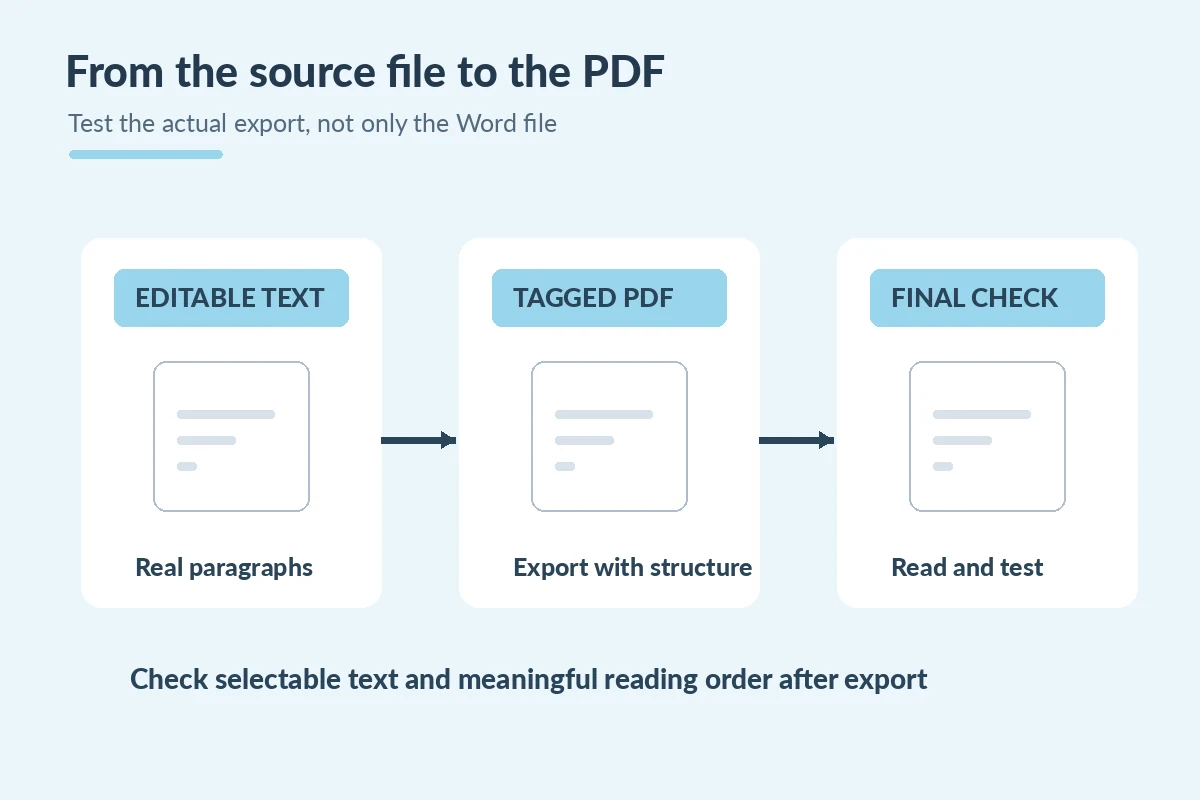
When the employer accepts PDF, save from a document editor that supports accessible export. Microsoft advises running the Accessibility Checker first and using PDF document structure tags where supported. Those tags can help assistive technology interpret the document’s logical structure. Export settings differ across Word versions and operating systems, so use the options offered by the program you have. Do not confuse a PDF created by printing to an image with a tagged document containing selectable text. A technical checkbox is a useful safeguard, not a guarantee that every issue is fixed.
Open the exact PDF you intend to upload. Verify that the filename is correct, the first and last paragraphs are present, links work, and the page remains readable at normal zoom. Select the body text and examine its copied order. If possible, test with a screen reader or an accessibility inspection tool. Compare the source document with the PDF, paying attention to headings, punctuation and contact information. If the portal asks for a different file type, follow its rules and apply the same principles in that format rather than forcing a PDF upload.
| Element or channel | Specific check |
|---|---|
| Source text | Readable paragraphs in a meaningful order. |
| Links | Descriptive labels and valid permitted destinations. |
| PDF export | Accessibility checks and structure tags where available. |
| Final preview | Selectable text, correct reading order, and complete content. |
Use a final review that includes people, not just tools
Accessibility software may flag missing text descriptions and low contrast, yet it does not judge whether an example is honest or the recipient is correct. Review the cover letter as a reader: can you identify the role in the first paragraph, understand one specific accomplishment or task, and locate the closing? Have you linked to work you can legitimately disclose? A concise letter is easier to navigate than an overloaded page, regardless of typeface. CareerOneStop’s structure of greeting, targeted content and close remains an appropriate editorial baseline.
The final checklist includes six actions: review the source layout, check contrast and links, export with accessibility settings, open the actual file, inspect reading order, and confirm the employer’s upload requirements. A format test cannot establish that the employer used particular screening software or accepted your letter for review. Keep a local copy of the submitted version and revisit it if an employer asks for a different file. An accessible document makes your information more usable; it does not substitute for relevant evidence or guarantee a hiring result.

How We Research Cover Letter Formats
We reviewed official career guidance and document-accessibility resources for the specific presentation and channel questions in this article: Microsoft Support. Microsoft Support. W3C WAI. CareerOneStop. The examples use fictional applicants, posting codes, and organizations; they are not employer policies, application receipts, testimonials, or promises that software will accept a document. Where an employer specifies a different field, signature, length, or file format, the actual announcement controls. See our affiliate disclosure; these informational links carry no invented affiliate relationship.
More Resume and Cover Letter Guides
No. Check whether text is selectable and whether tags, links and reading order work as intended.
Not strictly, but a straightforward one-column document simplifies reading order and review.
Avoid image-only documents when editable, readable text is possible.
Copy the PDF text into a plain-text editor as a preliminary check; assistive-technology testing is more comprehensive.
Submit the required format and use the accessibility tools available in Word or your editor.