
An Excel job application tracker is useful when it records what you can verify and highlights the next reasonable task—not when it invents a hiring outcome. Make one row per role and requisition; keep the confirmed submission date, employer-stated timeline, current factual stage, next action, and next-action date in separate fields. Use Excel filters for quick reviews and a simple formula to flag overdue personal tasks. The formula does not determine whether a recruiter wants another email. Here is a setup a U.S. applicant can build without macros, paid templates or misleading response-rate promises.
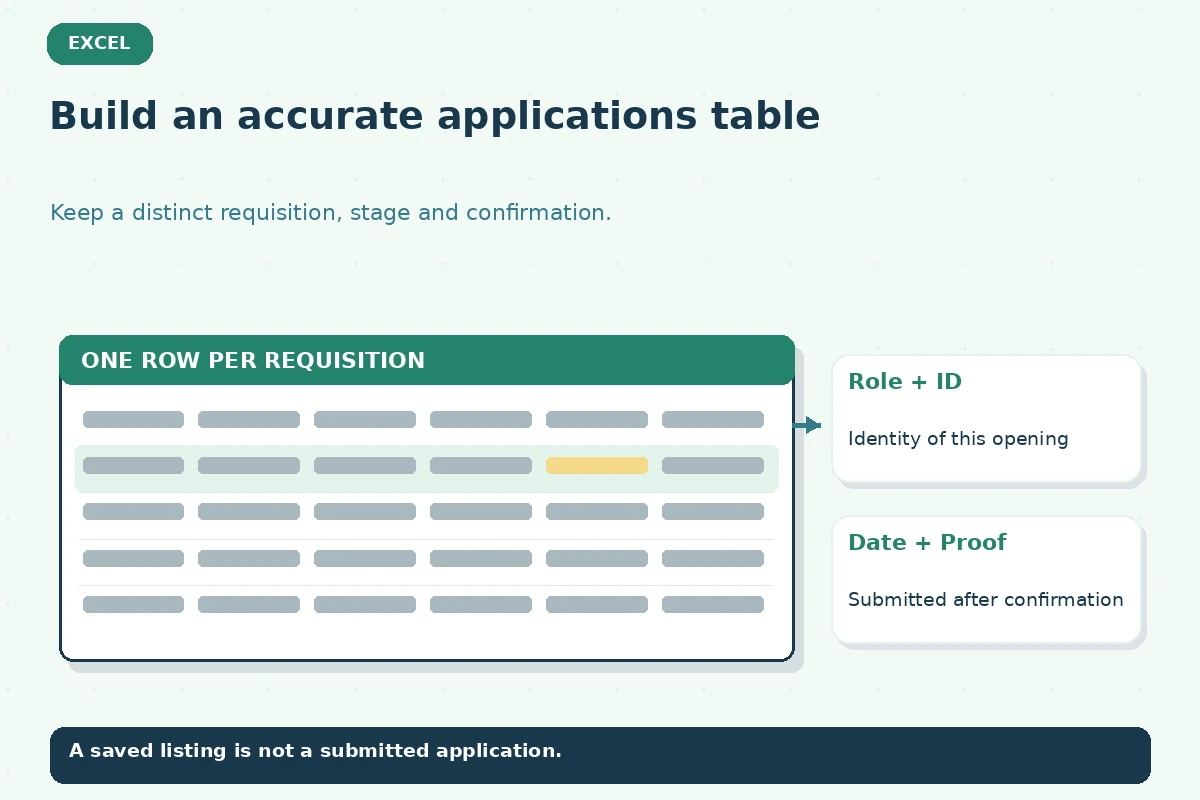
Start With One Row Per Position, Not One Row Per Company
Create a table with columns A through J: Employer, Exact Role, Requisition ID, Official Posting URL, Applied Date, Evidence, Stage, Next Action, Action Date, and Review Flag. Keep each application separate even if the same employer has several openings. A saved job is not a submitted job. Put “Saved” in Stage until you actually receive a confirmation page, acknowledgement, or verified record. The Evidence field can say “portal confirmation saved” rather than copying sensitive correspondence or recording unnecessary recruiter data.
For example, a fictional applicant saves two analyst jobs at the same company. They use separate rows because the titles, posting IDs, resume versions and deadlines differ. The first row shows “Applied” and the date from the confirmation email; the second remains “Preparing.” If a posting later disappears, the old row stays historically accurate instead of being quietly changed to “Rejected.” The value of the log comes from clear evidence and dates, not colorful status labels.
Add Excel Dropdowns That Describe Facts You Know
Select your Stage cells, then open Data, Data Validation and choose List. Microsoft documents this method for enforcing a manageable set of choices. Suggested values are Saved, Preparing, Applied, Interview Scheduled, Interviewed, Offer Received, Withdrawn, and Closed—Employer Confirmed. These are your personal tracking categories, not statuses standardized across employers. Use the employer’s actual wording in a separate note when it matters. Avoid a “Rejected” value unless you received a rejection or explicitly chose to treat the role as closed.
Turn the range into an Excel table so filters cover new rows. Filter Stage to show “Preparing” before a deadline or “Interview Scheduled” when preparing questions. Do not leave a row labeled “Interviewed” after an offer: update the Stage, preserve the date of the actual conversation elsewhere, and record the next required decision. Use a notes tab if you need historical events. A single current-stage cell cannot prove when each earlier stage took place.
Use a Date Formula Only for Your Own Review Tasks
If H contains the next action and I contains a real Excel date, enter this formula in J2 and copy it down: =IF(OR(H2="",I2=""),"",IF(I2<TODAY(),"Review due",IF(I2=TODAY(),"Review today","Scheduled"))). The quotation marks and cell references must match your column layout. Excel’s TODAY() returns the current date; it updates when the workbook recalculates. The formula deliberately says “Review due,” not “Email now,” because outreach must follow employer instructions and the most recent conversation.
Test with one hypothetical row dated yesterday, one today, one in the future and one with a blank Action Date. The first should say Review due; the blank row should remain blank. If a date appears as text, the comparison may not behave as expected; use actual date formatting. If the workbook is shared, clarify who edits the action and the date. A green flag cannot stand in for a real reply, and a red flag does not mean your application was rejected.
| Field or decision | Record this | Do not assume |
|---|---|---|
| Applied Date | Date of real confirmation | Never fill from memory as a guess |
| Stage | Your verified current milestone | Not a prediction of employer interest |
| Next Action | One action you control | No automated repeat messages |
| Review Flag | Due / today / scheduled | Not an employer status |

Choose Next Actions Without Automating Unwanted Contact
Set Next Action to a concrete step such as “check official portal,” “prepare three interview examples,” “send requested portfolio file,” or “review stated decision window.” Record a review date you chose because of the employer’s actual timeline, not an arbitrary universal number of days. When an interviewer promised news next Tuesday, note that promise and review afterward. When no deadline was given, use your own planning reminder and consider one brief, relevant follow-up only if permitted and useful.
An application can be inactive without being formally closed. Keep “No update received” as a note rather than declaring an outcome. If you receive a suspicious payment request, pause and verify the recruiter through an independently found employer channel; the FTC warns that scammers may impersonate employers and ask for money or sensitive data. Do not store Social Security numbers, banking details, passwords, or ID scans in a personal tracker. A workbook is an organizational aid, not a hiring system.
Check Data Quality Before Sorting or Counting Applications
Before your weekly review, filter the table for blank Applied Dates in rows marked Applied. Investigate only those where you may have forgotten the confirmation—do not insert today’s date as a guess. Check duplicate requisition IDs and mismatched job titles. A count of Applied rows is meaningful only if every row is genuinely submitted and represents a distinct role. A count of interviews from current stages is not a historical interview rate; those stages change as the search progresses.
If you need historical counts, create a separate Events sheet with the requisition ID, event type, actual date, evidence, and next step. This is more accurate than forcing multiple milestones into one status column. Keep a backup in a protected place, and share only a redacted version if you ask a career coach for feedback. If you export a CSV, remember that formatting, validation and formulas may not travel with the plain-text values. Reopen the saved file before trusting it.

Run a Five-Minute Excel Review With a Real Example
Suppose a fictional candidate has one submitted coordinator application, one analyst interview, and one saved office role. The tracker shows a confirmation for the coordinator role, the interview date for the analyst position, and no application date for the office role. During review, they prepare for the interview first, check whether the coordinator employer has supplied an update, and decide whether to tailor the saved application. They do not email all three employers just because a calendar flag appears.
Finish by checking the official employer sites, saving any new confirmations, and giving each active row one honest next action. If the role has been withdrawn by you, mark it as such and record the date. If the employer has expressly closed the process, mark it as confirmed. Otherwise, leave the outcome unknown. This discipline makes a modest workbook more dependable than a sophisticated dashboard based on assumptions.
How We Research and Check This Guide
This U.S.-focused guide was checked on 2026-11-13 against directly relevant product documentation and/or authoritative university and federal guidance: Microsoft Support, Microsoft Support, Microsoft Support, University of Michigan Career Center, Federal Trade Commission. The sample rows, people, roles and dates above are hypothetical illustrations. Employer processes vary; official application instructions and verified correspondence control your real next step. A personal tracker cannot predict acceptance or rejection. Read our affiliate disclosure; no partnership or hiring result is implied.
Related Job Search Guides
No. Neither TODAY() nor a stage dropdown reads an employer decision. Record a rejection only after a credible direct notice.
Use separate rows for different requisitions so application dates, materials and responses do not become mixed.
Check whether the date is a real Excel date, the column letters match your sheet and calculation is enabled.
Keep only necessary professional contact information and avoid personal, financial or confidential information.
No. Review the employer’s timeline, existing conversation and permitted channel before deciding on an outreach action.