You can apply for many jobs from a smartphone, but a small screen can hide mistakes. Start with the employer’s verified careers page, prepare the file type the posting requests, and read every field before submission. A phone is often adequate for a short application; for complex forms, attachments or long written answers, switching to a larger device may be safer. Most important, a button press is not evidence that the employer received a completed application: look for an actual confirmation or candidate-portal record.
Decide whether this application fits a small screen
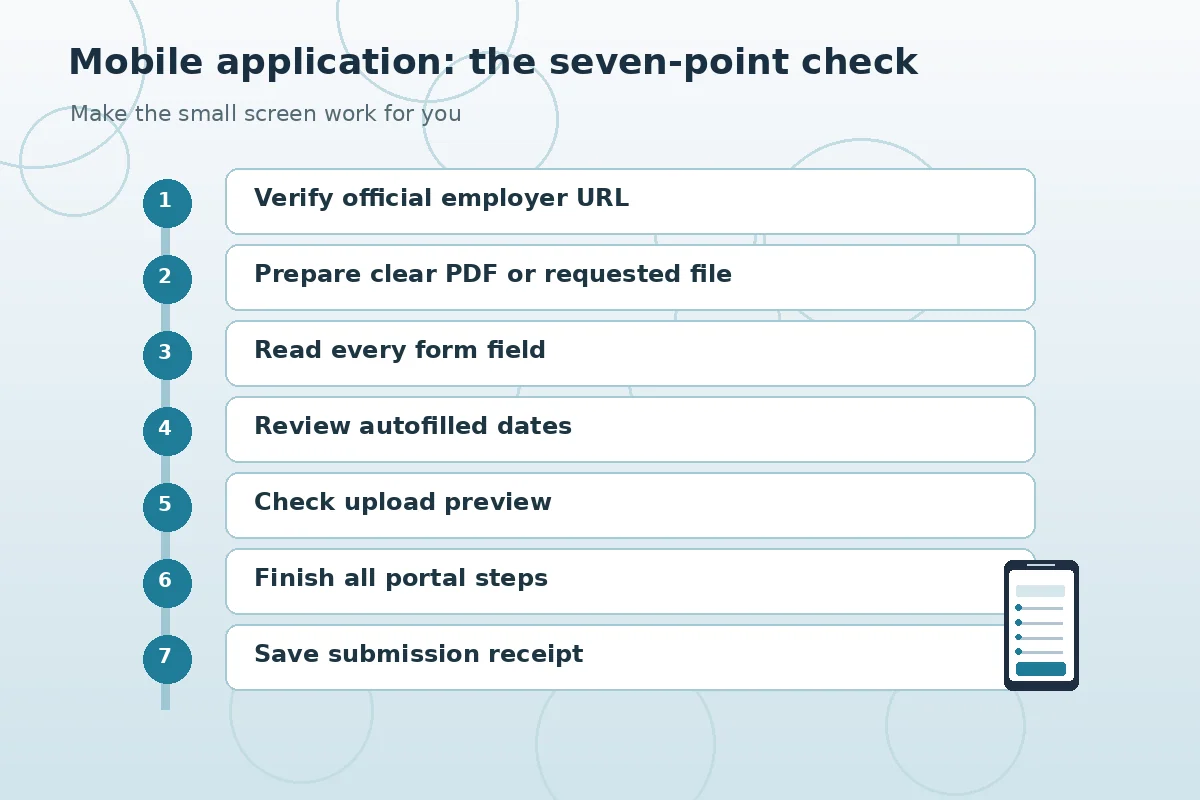
Open the actual posting, not just a social media preview. Identify the employer, job title, location and requisition number before tapping Apply. Inspect the list of steps and required documents. If the process is several pages long, includes a detailed work-history table or relies on a document editor, move to a computer when practical. The goal is to send a truthful, complete application, not to finish every task on one device.
Use a phone when the form has short, clearly labeled fields and your current documents are already saved on the device. A larger monitor becomes useful when you must compare many dates, enter long examples or review multiple attachment versions. The decision is not a rule that phones are unacceptable; accessibility settings, device familiarity and portal design vary. Test whether you can scroll, enlarge text and review entries without losing your place.
Prepare documents before opening the employer form
Save a current resume in a known folder, such as Files or Downloads. Use a readable filename and keep the original editable document separately from the upload copy. A PDF may preserve layout, but always follow the posting when it specifies another accepted format. Open the actual file on your phone and check that dates, contact information and links display correctly. A screenshot of a resume is not a substitute for a requested document unless the employer explicitly allows it.
If the employer asks for a cover letter or another attachment, confirm whether it is required and whether an online text field replaces the file. Prepare drafts outside the application so you do not lose work to an expired session. Never upload a photograph of a driver’s license, bank statement or other sensitive document just because an unexpected message says it will speed up hiring. Confirm unusual requests using an independently located employer contact method.
Use labeled fields instead of trusting autofill
Read the label above each field even if the phone keyboard suggests a familiar value. Autofill may place an old email, a previous address or a shortened employer name in the wrong space. Check work dates in the form’s exact expected order and make sure a current job has the correct end-date option. W3C guidance emphasizes clear labels, required fields and format instructions; when a real portal lacks those features, the applicant should slow down rather than guess.
On a narrow page, a horizontal table may contain fields that are off-screen. Scroll across as well as down, and return to the beginning of each section for a quick review. If labels overlap, error messages disappear or a date picker is impossible to use, try a larger device or contact the employer through its official help route. Do not repeatedly tap Submit to compensate for an unresponsive interface; that can make duplicate records.
Check the upload preview and file picker carefully
The file picker may show recent items rather than your final resume. Confirm the exact filename and modification version, then look for an upload-complete indicator. Some systems accept a file but parse it into separate work-history fields. If the portal provides a review or preview page, compare the extracted dates, titles and education with the original. Never assume that a green upload icon means the parsed content is complete.

Keep alternative versions clearly named for different job types, but do not exaggerate credentials when tailoring. If the portal rejects a file, read any listed size or format limit rather than randomly renaming the extension. Converting an image or file into a genuine PDF is different from merely changing its name. When a permitted file repeatedly fails, capture the non-sensitive error text and use official support. Avoid sharing screenshots containing private application details publicly.
Verify the employer and protect your accounts
Fraudulent hiring pages can look convincing on a mobile screen. Check the domain carefully and navigate to the careers page from a known official company website. The FTC warns that scammers impersonate employers and push candidates toward financial details or payments. An unexpected offer sent over text, or a request for a processing fee, should trigger independent verification before you follow any link or provide additional information.
Use a password unique to the candidate account and enable available account protections. Avoid using a shared phone for an application containing your address, employment history and saved attachments. If you must use a shared device, do not save passwords in the browser and sign out afterward. Keep recovery codes and one-time authentication messages private; they are not documents for a recruiter. An official application normally lets you review its privacy and contact information.
Complete every required step before counting it as submitted
In some systems the Apply button starts a sequence rather than ending it. USAJOBS, for example, describes a transition from its own application steps to an agency system, which may require further action. Private employers may also use separate assessment or document-confirmation stages. Continue until the verified platform shows completion; do not infer success from a spinning icon, a saved draft or a page that simply closes.
Take a private note of the employer name, exact title, requisition ID, date and verified submission status. Save the confirmation email or portal receipt without spreading personal details across unrelated cloud folders. If no confirmation appears, review your profile or application history first and look for an official technical support option. Repeating the application immediately can create confusion, especially when the system is slow.
| Situation | Better action | Why |
|---|---|---|
| Short form with clear labels | Use the phone and review | Low risk of hidden fields |
| Long work-history matrix | Switch to a larger screen | See all columns and dates |
| File preview is missing | Pause and confirm upload | A filename alone may not prove content |
| No submission confirmation | Check official portal history | Avoid false assumptions |
Use a short review process before every send
First confirm the opening is real and still accepting submissions. Next inspect phone number, email, current resume, work dates and role-specific answers. Check any required acknowledgments only after reading them. Review the attached file names and make sure each document is the version you intend. A final summary screen is a chance to correct factual errors, not to add stronger-sounding claims you cannot support.
A hypothetical example: someone applies for a scheduling assistant role while commuting. Their phone completes the basic fields, but the work-history table hides an end-date field. Rather than type an invented date, the applicant saves a draft and finishes on a laptop that evening. This is a better decision than a fast but inaccurate submission. The useful metric is accuracy and a verified receipt, not the number of applications tapped through in one sitting.

Record the result and choose the next action
A submitted status means the platform recorded an event; it does not mean a recruiter reviewed the application or that an interview is likely. If you receive only a saved-draft notice, return to the proper site and complete the missing steps. If the application has a deadline, check its time zone and cutoff in the actual posting. Do not rely on a job board’s simplified badge when the employer portal gives a more specific record.
Keep an application log containing the employer, role, job URL, requisition, submission date, version of resume used and any follow-up instruction. That log avoids multiple versions of the same application and gives you a reliable way to describe what you submitted. If you decide the posting is suspicious, stop and verify it independently rather than sending more personal data. Your record should support calmer decisions, not become another source of sensitive information exposure.
How We Research Online Applications
JobAsk compared this specific reader question with the user-supplied WordPress post list and reviewed public search results and primary reference material on November 6, 2026. Examples are hypothetical and should never be treated as real applicant success stories. Application software, employer practices, legal requirements, accessibility and deadlines vary; confirm important details with the actual employer. See our affiliate disclosure.
Source: www.w3.org — W3C explains required versus optional fields, expected input formats and clear form instructions.
Source: www.w3.org — W3C form design guidance addresses visible labels, mobile input and accessible controls.
Source: www.w3.org — W3C recommends clear submission success and error notifications rather than assuming completion.
Source: help.usajobs.gov — USAJOBS instructs applicants to review documents, verify package information and complete agency steps.
Source: consumer.ftc.gov — FTC warns that fake recruiters and sites seek money and sensitive information before legitimate hiring.
Source: career-advice.jobs.ac.uk — University job-career resource recommends using larger devices for lengthy forms and storing application records.
Related Job Search Guides
Often yes. First verify that the portal works on your device, that required files can be opened and reviewed, and that you can confirm the completed submission.
Use the format required by the employer. If a PDF is accepted, open the final file first and check its layout and content.
Try a larger device or the employer’s official accessibility or support channel; do not guess at hidden required fields.
No. Finish the portal steps and look for a confirmation or application-history entry.
Keep the role, requisition, date, document version and any confirmation. Store the record privately.