If a job application account is locked, stop retrying passwords and identify the exact website that owns the login. Use only the password-reset or help route reached through the employer’s verified careers page. A missing email, an incorrect password and a failed second authentication step are different problems with different solutions. Do not send your password or one-time security code to a recruiter. Once access returns, check whether the application was saved or actually submitted.
Identify the account that is actually locked
A job board account, an employer’s candidate portal and a separate sign-in provider may each maintain different credentials. Read the exact sign-in screen before you reset anything. For example, USAJOBS uses Login.gov for its sign-in process, while some employers have their own career-site account. Recovering a general job board password will not necessarily restore the employer-side application. Write down the official domain and the non-sensitive error message, not a full screenshot containing private data.
Confirm whether you registered with a personal email, a school address or a previous work address. An incorrect email can look like a wrong password. Do not create multiple accounts out of frustration until the official help page says it is appropriate. Duplicate profiles may separate saved applications from new messages. If the site has a dedicated technical-help contact, include the position and requisition number without giving account credentials.
Stop repeated attempts and follow the portal instructions
Many services temporarily limit sign-in attempts, but lockout periods are not universal. Login.gov publicly describes certain account lock situations and recovery steps for its own system; those time limits must not be copied to every employer portal. Read the message on your actual site. If it asks you to wait or use a reset link, do so through the verified route rather than cycling through guesses or browser tabs.

A corporate careers page may point to a particular service. SAP SuccessFactors documents a Forgot Password process for certain candidate sites, and an official employer FAQ may describe a similar option. Neither proves that your particular account uses the same interface. Use the currently displayed employer instructions. If you no longer have access to the registered email, ask the official support channel how identity and account ownership are handled.
Protect reset emails and one-time security codes
A password-reset message should be requested by you and connected to the account you intended to recover. If an unexpected person sends you a reset link, navigate to the site independently instead of trusting the link. Keep authentication codes and backup methods private. Login.gov explicitly tells users not to share unexpected one-time codes and recommends secure recovery methods. Employers do not need your one-time sign-in code to review a resume.
Check the browser address before entering credentials. Fake recruiting messages can mimic real hiring brands, as FTC guidance describes. Never pay a third party to unlock a candidate account or hand over the password so someone can ‘finish’ the application for you. If you suspect the credentials were exposed, change the password through the genuine portal, review any security settings available, and contact official support using an independently verified route.
Distinguish missing codes from a wrong password
If the password is accepted but the next screen asks for a one-time code, use a previously configured authentication option. A code might arrive through an authenticator app, text or a security key depending on the provider. Do not assume the same recovery choices exist at each job portal. Login.gov encourages more than one authentication method; it may not be able to restore access if the sole method is lost.
If you unexpectedly receive many codes, do not read them to anyone. Save only a broad description of the issue and follow the provider’s security guidance. When support asks for evidence, use the secure official method and avoid emailing full IDs, stored backup codes or screenshots of private profile records. The objective is to prove account ownership without disclosing the tools used to access the account.
Check whether the application is still saved
Once you can sign in, go to the candidate dashboard or application history. Look for a saved draft, an incomplete application or a submission confirmation. Do not assume that a session-expired screen means the employer received your form. Some systems ask applicants to complete steps after uploading a resume; USAJOBS documentation illustrates that a platform may transfer applicants to another agency site to finish. The employer’s actual workflow controls what counts as complete.
Compare the resume version, work history and answers in the saved draft with your own records. If a reset changed the account you use, verify that the intended application still appears. Never upload a replacement application automatically just because the old one is temporarily missing. Check the official portal’s help instructions first and ask support to confirm the status when the deadline is near.
Handle deadlines without inventing shortcuts
Application close times differ by employer and posting. If an account is locked close to a deadline, document the position, requisition, cutoff as displayed and error text. Contact verified recruiting support promptly and explain which step failed. The employer may or may not offer an alternative; a technical problem does not automatically extend a deadline. Do not claim that support promised an exception unless you have confirmation.
A hypothetical applicant receives a valid reset message but cannot open the linked page. Instead of emailing private credentials to an unsolicited helper, they reopen the official employer careers site, try the current reset route and send a concise technical support request with the requisition ID. They retain the timestamp for their own records. That preserves the possibility of a legitimate solution without pretending that the application is already in the system.
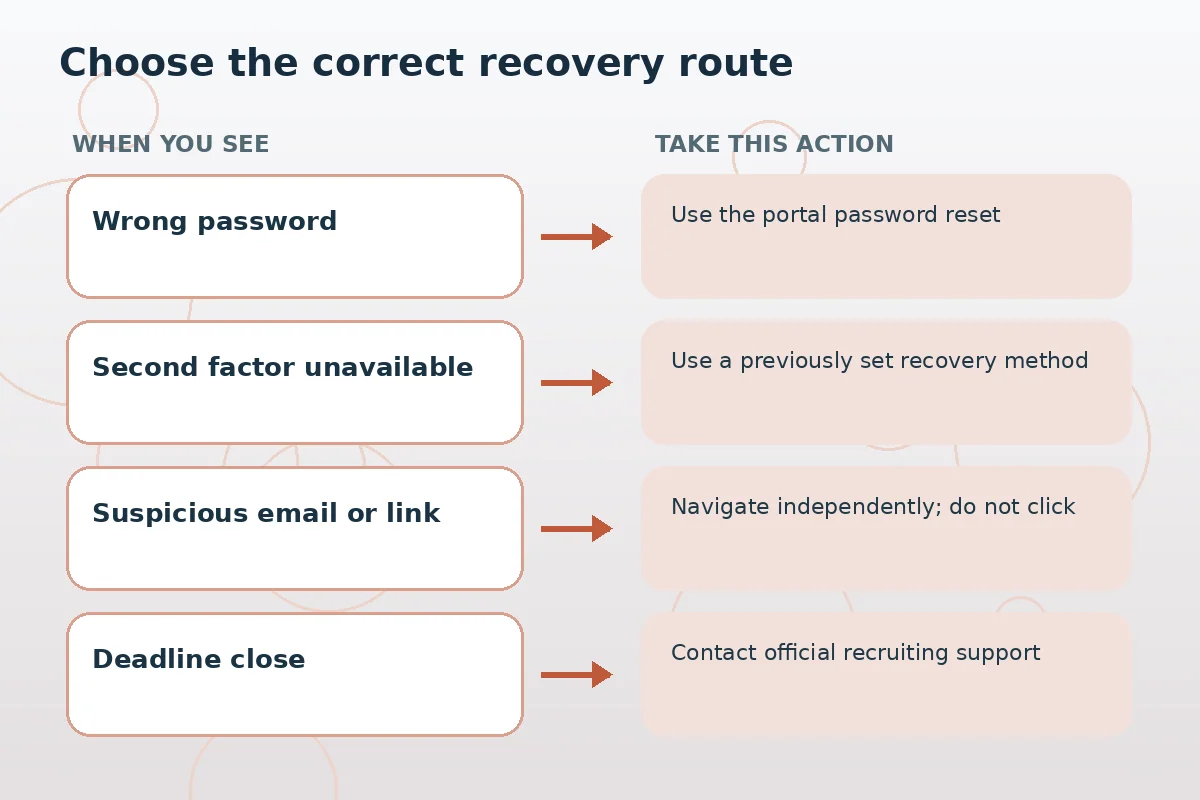
| Symptom | Safe next step | Avoid |
|---|---|---|
| Password rejected | Official Forgot Password | Repeated guessing |
| Second-factor failure | Original provider recovery option | Sharing codes |
| Unexpected reset link | Visit employer site independently | Clicking unsolicited link |
| Draft not visible | Check portal history and support | Assuming submitted |
Use a clean support message with minimal detail
A good help request includes the verified careers URL, job title, requisition number, account email if the official channel requests it, approximate time and error wording. State whether you tried the platform’s password reset and whether the problem is at the password or two-factor stage. Avoid sending secrets, identity numbers or copies of confidential job applications through unsecured email. Let support request additional information through its appropriate authenticated process.
If the official support team tells you the portal is functioning but your login is different, check whether you selected the correct sign-in provider. If your old address is inaccessible, explain the change without pretending you can verify the mailbox. A password manager may reduce future forgotten passwords, but access recovery still depends on the provider and method selected. Never copy a universal reset tutorial over a site’s real instructions.

Plan a safer candidate account setup for later
Keep a private list of which verified employer portals you use and the non-secret email associated with each. Enable available authentication protections and make sure the recovery method will remain accessible if you leave a school or workplace. Review application receipts and saved drafts soon after each submission. Do not keep passwords or one-time codes in the same shared spreadsheet as job-search activity.
An access issue is primarily a security and workflow problem, not evidence of a rejected application. Separate troubleshooting from application status. A portal error does not tell you whether a recruiter has reviewed your experience. After recovery, finish and verify the actual application steps; then record the confirmed status and move on to the next authentic opening. This reduces both unnecessary reapplications and the temptation to use unsafe shortcuts.
How We Research Online Applications
JobAsk compared this specific reader question with the user-supplied WordPress post list and reviewed public search results and primary reference material on November 6, 2026. Examples are hypothetical and should never be treated as real applicant success stories. Application software, employer practices, legal requirements, accessibility and deadlines vary; confirm important details with the actual employer. See our affiliate disclosure.
Source: www.login.gov — Login.gov provides official authentication recovery paths and recommends multiple authentication methods.
Source: www.login.gov — Login.gov documents specific lockout reasons and distinct recovery times for its own service.
Source: www.login.gov — Login.gov warns not to share unexpected one-time authentication codes.
Source: userapps.support.sap.com — SAP SuccessFactors documents its career portal Forgot Password workflow as a platform-specific example.
Source: www.careers.jnj.com — An official employer FAQ confirms its candidate account reset route, which is not universal to other sites.
Source: help.usajobs.gov — USAJOBS describes employer-specific application steps, uploaded documents, profiles and completion checks.
Source: consumer.ftc.gov — FTC warns that fake recruiters and sites seek money and sensitive information before legitimate hiring.
Related Job Search Guides
Use the employer’s verified careers-site instructions and its authorized login provider. Procedures vary by platform.
No. Recruiters do not need your password, one-time code or backup codes to assess an application.
Check the employer portal’s guidance first; duplicate profiles may complicate tracking and do not guarantee access to a saved draft.
Not necessarily. After signing in, verify whether the draft exists and whether it was submitted.
Contact the verified support route with the requisition and a concise problem description. Do not assume an automatic extension.