Name a cover letter attachment clearly enough that you and the employer can identify it: for example, Firstname-Lastname-Role-Cover-Letter.pdf. Use the file type actually requested by the application. Before uploading, open that exact file and check the employer, role, contact details and final paragraph. A tidy name is useful, but it does not prove the contents are correct.
Microsoft gives a descriptive name-and-role filename as one practical option. There is no universal rule that every job portal accepts identical punctuation, length or file formats. Follow a specific naming instruction when provided. This article focuses on preventing wrong-file submissions, not on what the cover letter should say.
Use a human-readable filename
A sensible pattern combines your name, the job title and document type. Hyphens or underscores keep the words separable on many systems. If the posting includes a short requisition number, you can add it when useful and allowed. Keep the name reasonably short; unusual symbols can be awkward in some upload interfaces.
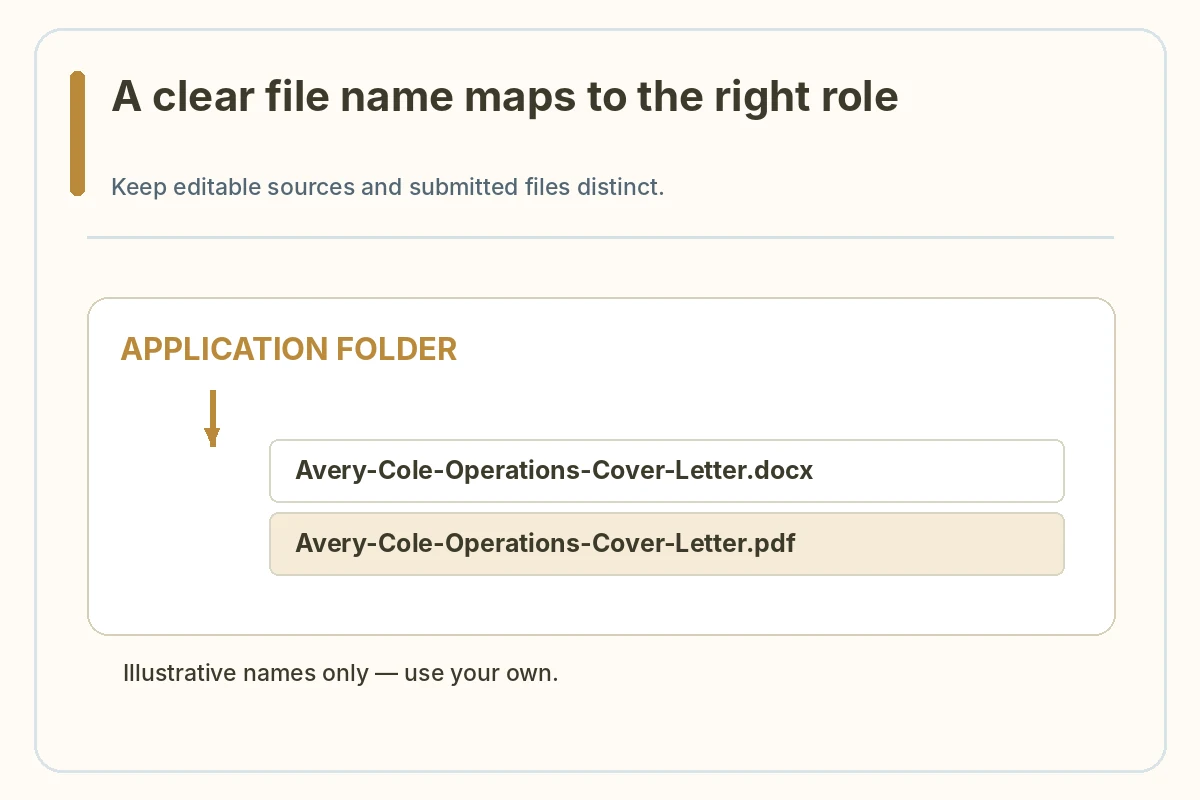
For a fictional applicant named Avery Cole applying for an operations assistant role, “Avery-Cole-Operations-Assistant-Cover-Letter.pdf” is a readable example. It is not a file you should submit unchanged. Make sure the actual contents match the operations assistant role. The filename should not contain private ID numbers or claims such as “guaranteed interview.”
Keep source files separate from submitted files
Maintain an editable source document and a clearly identified export. A Word draft and its PDF may share a base filename but have different extensions. When the posting asks for PDF, do not upload the editable DOCX by accident simply because the names are similar.
It helps to keep a folder per application or a reliable tracking convention. This is organizational advice, not a requirement that employers can see your folders. The objective is to avoid opening yesterday’s draft when attaching today’s tailored letter. Keep the submitted copy unchanged for your records.
Verify role and employer inside the document
Search the file for an old employer name, a stale job title, an incorrect date and leftover placeholders. Do not assume a filename containing the right role means the document is tailored. Open the first paragraph and read it in context; generic text can remain even when the heading is correct.
If you applied to two roles at the same company, preserve separate versions that accurately describe each job. Avoid copying a letter that names the wrong team or says you have a credential you do not hold. A pre-upload name-and-content check is a simple way to catch this preventable problem.
Confirm the file format and opening behavior
A filename extension is not a conversion method. Saving a Word document under a name ending in .pdf does not create a valid PDF; use the program’s export function. Then open the exported file independently and check for clipped text, unreadable fonts, missing symbols and working links.
If the portal specifies DOCX, upload a real DOCX. If the field expects plain text, paste a text version rather than attempting to attach an unsupported file. Do not assume every portal can preview every file type; perform your own local inspection before uploading.

Choose the file deliberately in the upload dialog
When the upload window opens, check the selected directory, filename and extension before confirming. Some browsers remember the last-used directory rather than the one containing your newest document. After selection, read the attachment name that the portal displays and verify it is in the correct cover-letter field.
Do not upload a resume where the cover letter is requested, or vice versa. If you can view the attached file through the portal before final submission, check it again. Never assume the first file in a folder is the most recent or that sorting by name reflects the actual revision order.
Keep a simple submission record
Write down the employer, exact role, date, platform and version or filename you sent. If the system provides a confirmation identifier, store it in your private tracker; do not publish it in a screenshot. This helps you answer later questions without altering the original attachment.
The filename is not proof the employer received the application. Follow the portal’s confirmation process and distinguish a saved draft from a submitted application. If a network error interrupts the final step, inspect the account record before submitting again to avoid creating a duplicate.

Fix a discovered mismatch carefully
If you notice a wrong attachment before submitting, remove it and select the correct verified file. If you notice it after submission, consult the portal’s edit or replacement policy rather than automatically sending several copies. Some systems allow updates; others require a contact request.
If you contact the employer, state the correction briefly and provide the right file only through a legitimate channel. Do not invent a submission receipt or claim an upload succeeded when the portal did not confirm it. Keep both the corrected file and any actual response in your private application log.
Worked Example: A Draft You Must Personalize
Hypothetical mix-up: two files are named “CoverLetter-final.pdf” and “CoverLetter-final2.pdf.” One still names a previous employer. The applicant opens the correct export, verifies role and contact information, renames it with their own name and role, attaches it to the designated field, then checks the final submission status. No outcome is guaranteed by the filename.
Treat this example as a demonstration only. Do not copy fictional employment, names, credentials, results or contact information into a real application. Recheck each detail against your records and the employer posting. When a system does not show a submission receipt, do not claim that a saved document was delivered.
Verify This Letter in Its Actual Submission Format
Before sending, reread the headline question: cover letter file name. Verify that the visible letter matches the employer and role, the claims describe things you actually did, the document or text is readable in the target channel, and no sample placeholders remain. A practical check has four steps: compare the posting, open the exact submission file, inspect its content or preview, and record the actual submitted status. Do not treat this guide as a promise of a recruiter response.
When you adapt the letter for another employer, repeat the check from the beginning. Employer-specific instructions outrank generic examples, and digital portals may behave differently. A clear application is valuable because it communicates your experience faithfully, not because a particular font, file name, software or page layout is universally approved.
How We Research This Guide
We compared first-party career-center cover-letter guidance, Microsoft Word documentation where relevant, and the JobAsk topic inventory on November 2, 2026. The guidance describes practical formatting options rather than mandatory US-wide hiring rules; real job postings and submission platforms take priority. Examples and names are fictional, not verified candidate outcomes. Read our affiliate disclosure.
Microsoft Word layout guide: Microsoft explains readable type sizes, page margins, spacing, templates and export checks in Word. Reviewed November 2, 2026.
Career guidance source: CareerOneStop describes the purpose and usual sections of a concise, tailored cover letter. Reviewed November 2, 2026.
Career guidance source: University of Nebraska–Lincoln explains printed-letter section order and adapting a cover letter to an application text box. Reviewed November 2, 2026.
More Resume and Cover Letter Guides
Use your name, the role and Cover-Letter, such as Firstname-Lastname-Role-Cover-Letter.pdf, unless the employer instructs otherwise.
You may if it helps you track versions and the portal accepts the length. The content check matters more than the exact pattern.
No. Export or convert the file properly, then open and inspect the result.
A descriptive role-specific name is often more useful than final or final2, which can become ambiguous.
Follow the portal’s update instructions; do not assume the employer permits replacement or that an unsent correction was received.