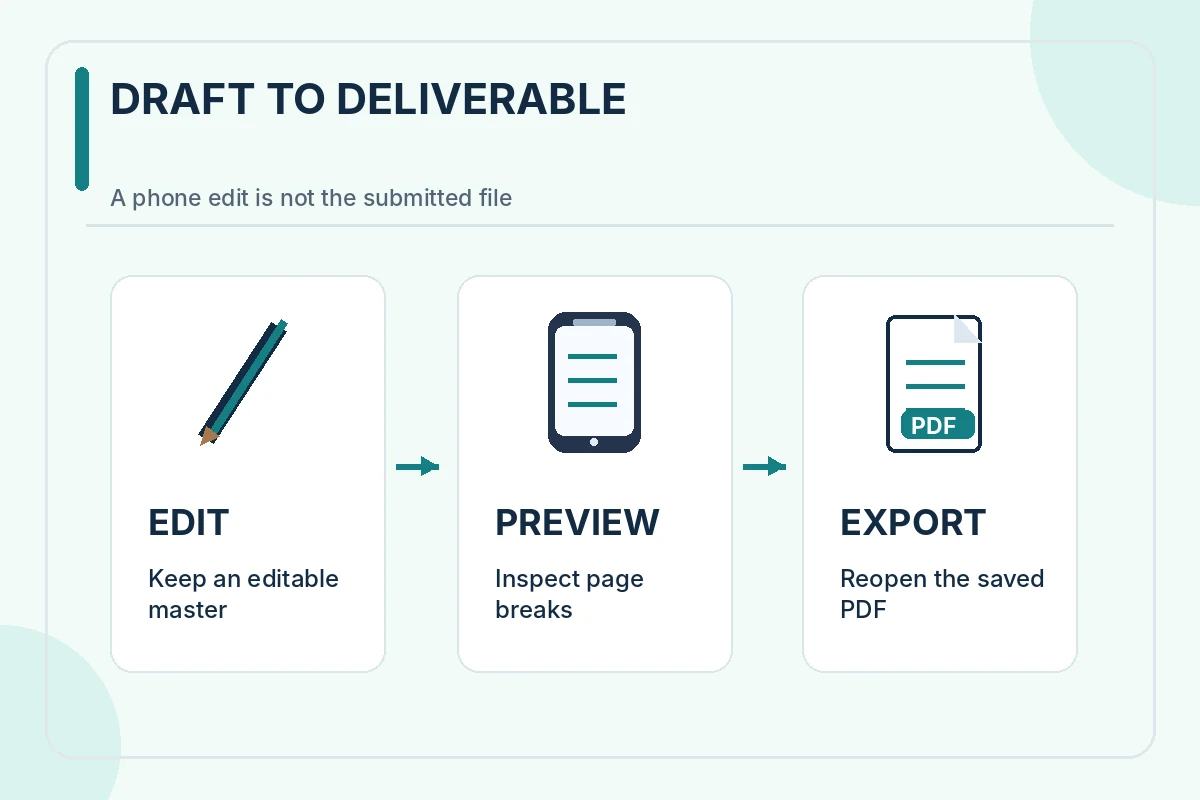
You can make a usable resume on a phone without purchasing a special resume-builder subscription. Begin with a plain document in a mobile editor you can access again, add the experience and education relevant to one job, and export the file type requested by the employer. The hardest part is not typing the content: it is checking that the document still looks sensible after it leaves the editor.
Keep two versions separate from the start: an editable master that you can revise and an application copy you will send. Give them distinguishable names, rather than editing the only copy of a PDF whenever a new vacancy appears. Google Docs on Android supports document editing and several download formats; Apple Pages on iPhone supports exporting a copy as PDF or Word. Controls may differ by app version, so rely on your current app’s export menu rather than memorizing someone else’s screen.
Enter content in a dependable order
Start with a name, working personal email, city and state if useful, and a phone number you actually monitor. Then enter relevant experience, training, and skills. For each actual job, include the real employer, role, and dates. If an activity was a course project or volunteer assignment, name it that way. A phone keyboard makes overediting tempting; focus first on accuracy and relevance, not perfect spacing.
A short draft usually needs readable headings such as Experience, Education, and Skills. Do not insert decorative text into the contact line or use a complicated table to force information into two columns. A simple single-column layout is easier to edit on a small screen and easier to inspect later. CareerOneStop recommends consistent formatting and checking the document in the form it will be submitted.
When a vacancy lists a specific tool or responsibility that you genuinely used, put that evidence next to the relevant role or project. For example, a volunteer who scheduled event sessions may mention maintaining a shared calendar and confirming attendee changes. Do not add software proficiency, a certificate, or a numerical result simply because the job description uses that phrase.
Check the printed page, not just the editing screen
Mobile editors can wrap lines differently while you type. A heading that looks fine in edit mode may be separated from its bullets in the final file. Switch to a page or print layout view, if available, and inspect the top and bottom edges of every page. Google Docs documents in pages format can be reviewed using its Android print layout feature; its pageless mode does not provide the same page setup view.
Inspect the name and contact section first, then the longest bullets, dates, and education entries. Watch for a one-word final line, a date that drifts to the next line, or a heading stranded at the bottom of a page. If an entry has become too dense, shorten the statement by removing vague filler instead of forcing a smaller font across the whole document.
If a template displays columns or decorative icons, copy the text into a simple document and review what you gain or lose. The goal is not to guarantee an applicant-tracking result—no layout can do that across every employer system—but to produce a readable, selectable document that communicates your actual experience.
Export the format the employer requests
The vacancy or application portal decides the required format. If it asks for DOCX, send DOCX; if it accepts a PDF and offers no contrary instruction, PDF is often a sensible way to preserve layout. Apple Pages exports a separate copy, and Google Docs on Android supports PDF and DOCX among its export options. Save that copy with a clear descriptive name that identifies the applicant rather than a generic “resume-final-final” label.
After export, open the resulting file in a separate viewer instead of trusting the editor preview. Select text from the first page if possible; confirm that the name, headings, dates, and hyperlinks survived. Check whether the file remains one or two sensible pages and whether the phone created a blank trailing page. If the application system offers a preview, review the uploaded copy too.
A screenshot of a resume is not the same as a selectable document. Do not use a screenshot unless the employer explicitly requests an image. A scanned or photo-only page can be harder to search, update, or process, and it may accidentally include notifications or personal details that were visible on your device.

Keep private information out of shared drafts
A resume normally needs enough contact information for an employer to reach you; it does not need a Social Security number, bank details, date of birth, or identity-document photograph. The FTC warns that fake recruiters may request sensitive records before they have established a legitimate hiring process. Treat those requests as a reason to verify the employer through an independent channel.
If you work on a borrowed phone, a shared family account, or a public computer later, check where copies are saved and who can see them. Remove public sharing permissions from cloud documents unless they are deliberately meant as a public portfolio. Review link sharing and comments before sending any URL. Keep a clean backup in a personal account so you can make a corrected version without starting over.

Use a four-stage final check before you apply
First, compare your resume to the specific vacancy and remove irrelevant claims. Second, review every job, date, organization name, skill, and credential against what you can prove. Third, inspect the full exported document for page breaks and readable text. Fourth, confirm that the attached file in the application is the same reviewed version and that you did not attach an old draft.
A useful habit is to record the job title, employer, date, and resume filename in a private tracking note after submission. This makes it easier to answer interview questions using the exact version the employer received. The mobile workflow is complete only after you have checked the submitted artifact, not merely tapped an export button.
How We Research and Verify This Guidance
This guide is based on documented career-service guidance and the actual limitations of the example scenarios, not promises about hiring outcomes. We checked the linked primary or specialist sources on November 2, 2026, and distinguish general resume recommendations from decisions that depend on a specific employer. We do not have confirmed affiliate relationships for these articles. Read our affiliate disclosure for the site policy.
Official source reference: Official Google documentation confirming Android document editing and supported export formats. The linked material informs the stated advice; it does not certify an individual applicant or guarantee employer acceptance.
Apple source reference: Apple support instructions for exporting Pages documents on iPhone to PDF or Word. The linked material informs the stated advice; it does not certify an individual applicant or guarantee employer acceptance.
Google source reference: Google Docs Android print layout preview and page setup information. The linked material informs the stated advice; it does not certify an individual applicant or guarantee employer acceptance.
CareerOneStop source reference: CareerOneStop recommendations for readable one-column layout, PDF exports and checking the submitted format. The linked material informs the stated advice; it does not certify an individual applicant or guarantee employer acceptance.
FTC source reference: FTC warning about sensitive personal information in fake job recruitment. The linked material informs the stated advice; it does not certify an individual applicant or guarantee employer acceptance.
More Resume and Cover Letter Guides
Yes. An Android document editor can create and edit a text-first resume. Export the requested format and inspect the saved file in a separate viewer before uploading.
Yes, if you use a simple document and export a PDF or Word copy as needed. Review the exported copy because the editable Pages file is not automatically the file an employer wants.
Follow the job posting or portal instructions first. If neither specifies a format, a checked PDF is generally a reasonable option for preserving layout; keep an editable master.
Different views, fonts, page settings, and document converters can change line wrapping and page breaks. Inspect the PDF or DOCX itself and edit the source document before exporting again.
Avoid sending a screenshot unless the employer asks for an image. A document with selectable text is generally more useful, easier to update, and less likely to reveal unrelated content on your screen.